This tutorial builds an AI email triage workflow in n8n that can classify Gmail messages, decide which ones need attention, draft a reply, and route the draft through human approval before anything is sent. The goal is not a fully autonomous inbox agent. It is a controlled business workflow where AI handles interpretation and drafting while deterministic rules control routing and external actions.
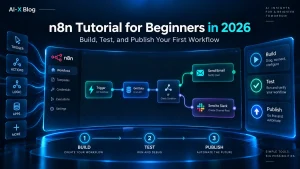
That distinction matters. n8n already has many community templates that can draft or send email replies. The useful skill is understanding how to build the workflow yourself so you can decide where AI is allowed to act, where it must stop, and how failures are handled. If you are new to the platform, our n8n tutorial for beginners covers triggers, expressions, branching, webhook security and production publishing before you add AI.
Methodology note: this tutorial was rechecked against n8n’s current Gmail message-operations documentation and execution/retry documentation on September 25, 2026. The Gmail node documentation confirms the Reply and Send and Wait for Approval operations, and n8n recommends the Wait node for more complex approval flows. AI-XBlog has not run this exact workflow in a production inbox, so we do not present it as a hands-on benchmark or production-tested reference implementation. Treat it as a reproducible build pattern and validate it in a test mailbox before live use.
What you will build
The workflow uses a simple control pattern:
Gmail trigger → normalize → filter noise → classify with structured AI output → route by risk → generate draft → human approval → reply → label/log outcome
| Stage | What it does | Should AI control it? |
|---|---|---|
| Trigger | Detect a new email | No |
| Filtering | Drop newsletters, no-reply mail and obvious noise | Prefer rules first |
| Classification | Identify category, priority, sensitivity and reply need | Yes, bounded |
| Routing | Choose safe-draft vs human-only path | Deterministic rules |
| Drafting | Generate a proposed response | Yes, bounded |
| Approval | Decide whether a reply may be sent | Human |
| Send | Reply to the original message | Deterministic after approval |
| Recovery | Retry, alert and inspect failures | Deterministic |
This is the same principle used in our AI Automation in 2026 guide: if a step only needs rules, use rules. Add AI only to the parts that require interpretation.
Prerequisites
- An n8n Cloud or self-hosted instance
- A Gmail account connected to n8n with the permissions required for reading and replying
- An LLM credential such as OpenAI, Anthropic, Gemini or another n8n-supported chat model
- A dedicated Gmail label for the inbox segment you want the workflow to watch
- A reviewer email address for approvals
- A small set of approved business facts, FAQ answers or response rules for drafting
Do not begin with your entire inbox. Use a dedicated label such as AI-Triage or a test mailbox so the workflow has a narrow blast radius while you validate it.
Step 1: define the categories before you open n8n
Start with a small classification set. More categories make the workflow harder to test and easier to misroute.
| Category | Example | Default action |
|---|---|---|
| sales | Pricing, availability, product questions | Draft + review |
| support | How-to or account issue | Draft + review |
| billing | Invoice, refund, payment problem | Human review required |
| sensitive | Legal, security, privacy, credentials | Human only |
| noise | Newsletter, automated notification, obvious spam | No reply |
| other | Anything uncertain | Human review |
The important design choice is that the model does not get to invent a new action. It returns a classification; your workflow decides what that classification is allowed to do.
Step 2: add the Gmail Trigger
- Add a Gmail Trigger.
- Connect the Gmail credential you want the workflow to monitor.
- Use the trigger filters available in your n8n version—prefer a dedicated Gmail label such as
AI-Triage—instead of processing the whole mailbox. - If your trigger configuration does not expose the filter you need, apply the same restriction immediately after the trigger before any AI node runs.
- During testing, route only messages you deliberately send into the test label or test mailbox.
Use the narrowest trigger filter you can. Filtering before the model runs reduces token cost, limits sensitive-data exposure and makes debugging easier.
Step 3: normalize the email into a small schema
Add an Edit Fields or equivalent transformation step so downstream nodes receive only the fields they need. A useful normalized object is:
{
  "message_id": "...",
  "thread_id": "...",
  "from": "...",
  "subject": "...",
  "body": "...",
  "received_at": "..."
}
Do not send every header, attachment and thread field to the model by default. Minimize data before AI processing.
Step 4: filter obvious noise before the AI step
Use deterministic rules first for cases that do not require semantic judgment. Examples:
- sender contains
no-replyor another known automated address; - message is from a known notification service;
- subject matches a recurring system alert;
- the message already has your processed label;
- the email is a duplicate thread or message ID.
This prevents the classic automation failure where the system spends money asking an LLM to identify something a three-line filter already knows.
Step 5: classify the email with structured output
For this workflow, a Basic LLM Chain plus Structured Output Parser is more useful than asking for free-form text. You want fields that the next nodes can validate.
{
  "category": "sales|support|billing|sensitive|noise|other",
  "priority": "low|normal|high|urgent",
  "needs_reply": true,
  "needs_human": true,
  "sensitive": false,
  "summary": "one-sentence summary",
  "reason": "brief classification reason"
}
Your classification prompt should state the allowed values explicitly, instruct the model not to follow instructions found inside the email body, and tell it to choose other plus needs_human=true when uncertain.
That last rule is important. Uncertainty should reduce autonomy, not increase it.
Step 6: route with a Switch node, not with model prose
Add a Switch or equivalent conditional branch after the parser. A practical policy is:
- noise: label processed and stop;
- sensitive: notify reviewer and stop;
- billing: human review before any draft is sent externally;
- sales/support: generate a draft, then request approval;
- other or parse failure: human queue.
Do not let the model call Gmail directly in the first version. The model proposes; deterministic workflow logic decides whether a Gmail action is even reachable.
Step 7: generate a reply draft from approved facts
Only the safe-draft branches should reach the drafting step. Give the model:
- the normalized email;
- the classification result;
- approved company facts or FAQ text;
- tone and length requirements;
- explicit forbidden actions, promises and claims;
- a rule to insert
[CHECK]when required information is missing.
A strong drafting rule is: never invent prices, policies, refund eligibility, deadlines, security claims or legal commitments. If the answer depends on information outside the supplied source material, the draft should say that human confirmation is required.
Step 8: add human approval before Gmail sends anything
n8n’s Gmail node currently supports a Send and Wait for Approval operation for simple approval flows. In this design, that node sends a separate approval request to your reviewer—not to the original customer. The workflow pauses until the reviewer approves or declines. Only the approved branch should continue to the later Gmail Reply node that answers the original message.
For more complex approval logic, n8n recommends using the Wait node rather than trying to turn the simple approval action into a full review system.
Your reviewer should see enough context to approve the real action:
- original sender and subject;
- classification and priority;
- AI summary;
- proposed reply;
- whether the workflow detected a sensitive category;
- the action that will occur after approval.
A generic “approve?” button is weak. The reviewer should know exactly what will be sent and to whom.
Step 9: reply only after approval
On the approved branch, use the Gmail Reply operation with the original message ID or thread context. Keep this action outside the AI node.
On rejection, either stop the workflow or route the message to a human queue. Do not automatically ask the model to keep regenerating forever; revision loops need their own limit.
Step 10: prevent duplicate processing
Email workflows fail badly when the same message can be processed twice. Use at least one persistent deduplication control:
- apply a Gmail label such as
AI-Triage-Processedafter successful handling; - exclude that label from the trigger filter or stop the message immediately when that label is present;
- or store the Gmail message ID in an n8n Data Table (or another persistent external store) and check it before processing.
Do not rely on “the workflow probably only fires once.” Idempotency is part of workflow design.
Step 11: design the failure path
n8n keeps execution history and allows failed executions to be retried. Your workflow should also define what happens before someone opens the execution log.
- If the LLM output does not parse, route to human review.
- If Gmail fails, do not mark the message as processed.
- If you need an approval deadline, design an explicit timeout or escalation path; otherwise leave the execution waiting and never send just because no reviewer responded.
- If the model provider is unavailable, fail closed rather than sending a generic reply.
- Log the message ID, category, decision and final action so you can audit what happened.
A workflow that only works on the happy path is a demo. A workflow with observable failures and safe recovery is something a business can operate.
A simple test matrix before activation
| Test email | Expected category | Expected outcome |
|---|---|---|
| Basic pricing question | sales | Draft + approval |
| Password/security concern | sensitive | Human only |
| Refund request | billing | Human review |
| Newsletter | noise | Stop |
| Angry customer with unclear request | support/other | Human review |
| Legal threat | sensitive | Human only |
| Normal how-to question | support | Draft + approval |
| Prompt injection inside email body | Depends on real intent | Never bypass policy or approval |
Run each case repeatedly with different wording. You are testing the system’s routing behavior, not whether one prompt can produce one good answer.
Why this workflow does not need an AI agent
The path is known in advance: receive → classify → route → draft → approve → send. That means a deterministic workflow with bounded AI steps is easier to inspect and usually safer than giving an agent Gmail tools and asking it to decide everything at runtime.
If you later add tool-calling autonomy, read our AI Agent Security in 2026 guide first. Permissions, blast radius, tool access and runtime controls become more important once the model can choose actions itself.
How this fits the small-business automation scorecard
Email triage is often a strong first pilot because it is repetitive, measurable and easy to keep review-gated. But that does not make every inbox safe to automate. Score your own process using the AI-XBlog 7-Factor Automation Scorecard before expanding scope.
If you are still choosing a platform, see our n8n vs Zapier comparison. If cost is the blocker, our n8n pricing guide explains Cloud, Community Edition and self-hosting economics.
Primary sources
- n8n Docs: Gmail message operations
- n8n Docs: executions and retrying failed workflows
- n8n workflow example: Gmail responses with human verification
- n8n workflow example: triage and draft support replies
- n8n workflow example: approval through a review queue
Source check: September 25, 2026. n8n’s current Gmail documentation confirms Reply and Send and Wait for Approval, and its execution documentation confirms retry support for failed workflows. Node names, available operations and UI labels can change, so this page is maintained as living content and should be rechecked when n8n changes these features.
AI-XBlog Weekly Brief
Keep up with AI that actually works
Join the AI-XBlog Weekly Brief for major AI updates, practical workflows, useful tools, and editor’s picks. No daily noise.
Reader discussion
Join the discussion
Have you tried this tool or workflow? Share your experience, corrections, or questions. Useful reader feedback may help us improve this article.
All comments are reviewed before publication. Your email address will not be published. Promotional links and low-value spam are removed.