AI computer use is the point where an agent stops calling clean APIs and starts operating software the way a person does: by looking at a screen, deciding what to click or type, and checking what happened next.
That makes computer use unusually powerful—and unusually easy to misuse. In 2026, OpenAI, Google, Anthropic, Microsoft and Meta all support some form of browser or desktop control, but the products hide very different architectures behind similar language. Some give you a managed cloud browser. Some work inside a local browser or desktop app. Developer APIs often require you to provide the execution environment, execute actions yourself and return screenshots to the model.
This guide explains the practical differences between browser automation, computer use, cloud browsers, desktop control, site tools and API/MCP integrations; when each approach is justified; and how to design approval, sandboxing and credential boundaries before an agent can click its way into a costly mistake.
Methodology: this is a documentation-verified architecture and decision guide based on current OpenAI, Google, Anthropic and Microsoft product documentation checked September 19, 2026. It is not a hands-on benchmark of task-success rates. Product availability, supported sites and model behavior can change quickly.
What is AI computer use?
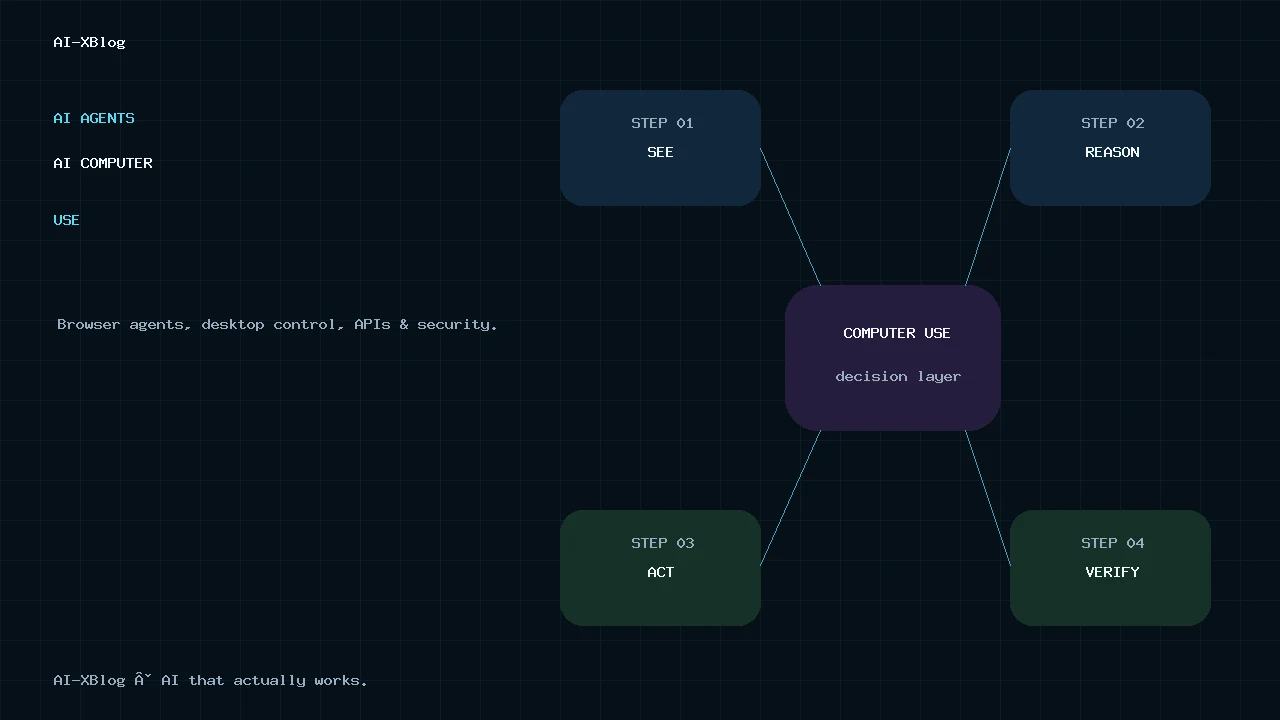
Computer use gives an AI system a way to interact with a graphical user interface rather than relying only on APIs or structured tools. The basic loop is simple:
- The agent receives a goal and the current state of the interface.
- It decides on one or more actions: click, type, scroll, open a tab, press a key or run code that manipulates the UI.
- Your system—or a managed product—executes those actions.
- The agent receives a screenshot or other state update.
- It checks the result and chooses the next action.
OpenAI’s current computer-use API documentation describes this as a conversation state plus a separate execution environment. Google describes a similar model: your client receives UI actions, executes them and returns screenshots. The model can reason about the next step, but your runtime is still responsible for making the action happen.
This distinction matters because the model is not the computer. It is the decision layer. The browser, VM, desktop session, permissions, credentials and logging system around it determine the real blast radius.
Computer use vs browser automation vs APIs
| Approach | How it works | Best fit | Main tradeoff |
|---|---|---|---|
| Direct API / app connector | Structured request to a supported service | Known operations with a reliable integration | Only works where an integration exists |
| MCP / site tool | Agent discovers structured tools exposed by a service | Agentic workflows that still have clear tool boundaries | Requires the site or service to expose tools |
| DOM / browser automation | Playwright, Selenium or structured browser controls target page elements | Web-only tasks where the page structure is accessible | Can break when page structure changes |
| Computer use | Model interprets screenshots or GUI state and produces mouse/keyboard actions | Interfaces without a clean API or stable automation surface | More variable, slower and harder to secure |
| Human takeover | A person temporarily takes control for sign-in, judgment or blocked steps | Credentials, ambiguous actions and high-impact checkpoints | Interrupts full autonomy—which is often the correct design |
The practical rule is the same one we use in our AI Automation in 2026 framework: use the least autonomous interface that reliably solves the problem. If an API can perform the task deterministically, computer use is usually unnecessary overhead.
Why computer use exists if APIs are better
APIs are usually cleaner, faster and easier to audit. But the world is full of software that was built for people rather than agents. Legacy enterprise tools, admin portals, local desktop applications, vendor dashboards and one-off browser workflows may have no useful API at all.
Computer use is valuable when the interface is the integration surface. Examples include:
- Entering information into a legacy web portal with no API.
- Testing a user flow in a real rendered browser.
- Operating a desktop application that exposes no structured automation interface.
- Collecting information from several authenticated websites where connectors are unavailable.
- Completing repetitive back-office steps that still depend on visual state.
- Reproducing a UI bug that exists only in a graphical workflow.
Microsoft’s computer-use guidance makes this positioning explicit: use GUI control when a person can complete the task but no suitable API or script exists. OpenAI’s desktop documentation similarly positions computer use as a fallback when command-line tools or structured integrations are not enough.
Four computer-use architectures you will see in 2026
1. Managed cloud browser
A managed cloud browser runs on a remote computer controlled by the product provider. You delegate a task, the browser operates independently of your local machine, and the task can continue after you close your computer.
OpenAI’s Cloud Browser in ChatGPT Work is a good example of a managed remote browser. It runs on a separate cloud computer, can continue delegated tasks in the background and remains separate from the browser state on your own device. Support for authenticated websites has been changing during rollout, so verify the current Help Center and workspace availability before designing a workflow that depends on sign-in. Where secure sign-in is supported, credentials are entered through a protected browser flow rather than exposed in the chat.
Managed cloud browsers are convenient because the vendor provides the browser runtime, but you trade away some infrastructure control. Website automation defenses can also block the browser even when the same site works normally for a person.
2. Local or built-in browser control
A local browser architecture operates a browser that you can see and take over. OpenAI’s built-in desktop browser and Microsoft’s Browse with Copilot are examples of this model: the agent works in a visible browser context while the user can observe or interrupt the run.
This can be a better fit when you need an existing signed-in session, local development route, browser extension or active tab. It also reduces the conceptual gap between “what the agent sees” and “what the user sees.”
3. Developer-managed computer-use API
In a developer-managed API design, the model decides what to do but you own the environment. OpenAI and Gemini both document this pattern. Your application provides a browser or desktop environment, receives actions from the model, executes them, captures the new state and sends it back.
This is the most flexible architecture because you can define the sandbox, browser, network policy, logging and credential layer. It also means you inherit the engineering work and security responsibility.
4. Browser extension or side-panel agent
Browser-extension agents operate alongside a person’s browsing session. Anthropic’s Claude for Chrome research preview is one example: Claude can read, click and navigate websites through an experimental extension while the user browses.
This architecture is powerful because it can access the context of a real browser session, but that same proximity to authenticated accounts increases the importance of prompt-injection defenses and explicit action boundaries.
Where site tools and MCP fit
Computer use should not become a substitute for structured tools. When a website can expose a safe, typed operation—“create invoice,” “find customer,” “update record”—that is usually preferable to asking an agent to visually find the right button.
OpenAI’s desktop browser now supports site tools based on WebMCP, and the broader agent ecosystem uses MCP for structured tool discovery. The architectural idea is the same: give the model a bounded operation when you can; use screen-level control only when you must.
Our AI Agents in 2026 guide covers MCP, tool calling and autonomy levels in more detail.
A simple decision tree: which interface should your agent use?
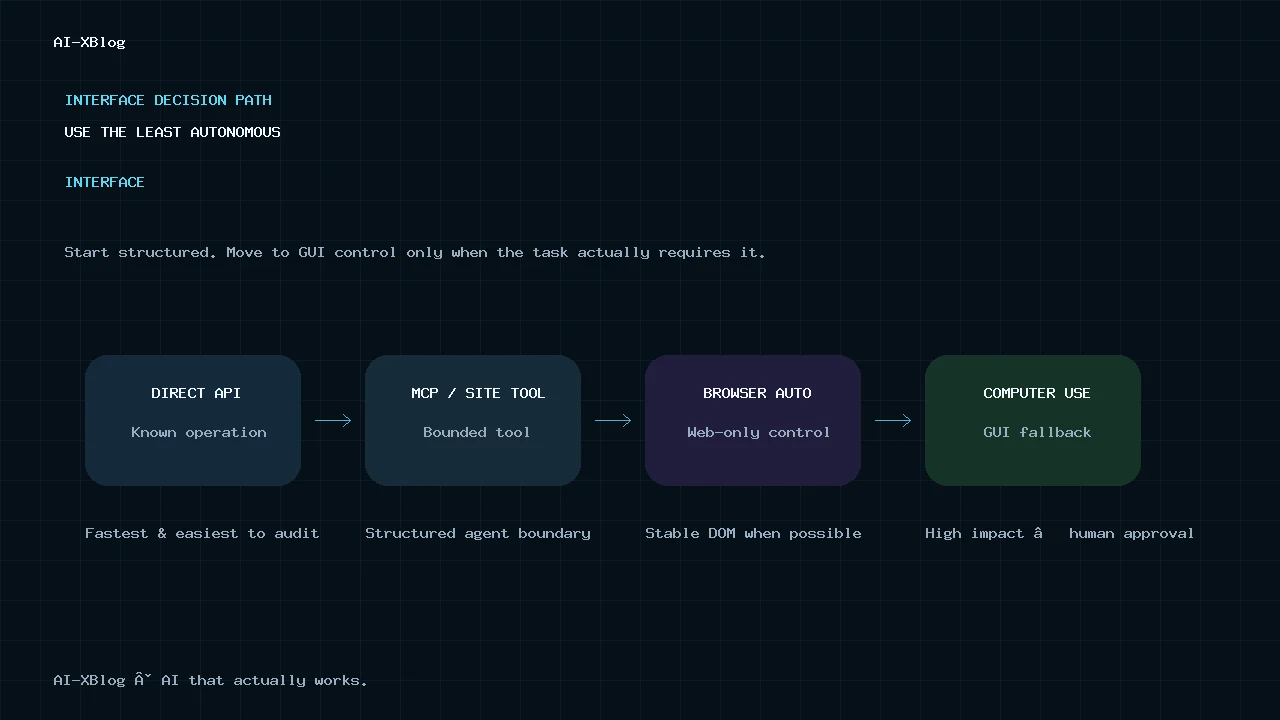
| Question | If yes | If no |
|---|---|---|
| Does a reliable API or connector already perform the operation? | Use the API / connector | Continue |
| Does the service expose an MCP or site tool with the operation you need? | Use the structured tool | Continue |
| Is the task entirely web-based with stable page structure? | Consider browser automation | Continue |
| Does the task depend on visual state or a desktop application? | Computer use may be justified | Redesign the workflow |
| Can a wrong click create material harm? | Add approval or keep the final action manual | Use bounded automation |
The reliability problem: GUIs are fuzzy APIs
A GUI was designed for human perception. Buttons move. Dialogs appear. A/B tests change layouts. Cookie notices cover controls. A slow page loads in stages. A browser agent therefore has to continually infer state rather than rely on a stable contract.
This is why computer-use systems need a verification loop. After an action, the agent should inspect the result before assuming success. “Clicked Submit” is not the same as “the transaction succeeded.”
- Check for a success message or changed state.
- Verify the destination page or resulting record.
- Do not infer success from a click alone.
- Use deterministic checks when the system exposes them.
- Escalate unexpected UI states instead of improvising indefinitely.
Prompt injection is more dangerous when the agent can click
A browser agent reads untrusted content and also has tools. That combination creates a direct security problem: malicious instructions embedded in a page, document or interface can try to redirect the agent’s behavior.
Google’s current computer-use API includes optional screenshot scanning for prompt injection. Anthropic evaluates browser products against injected untrusted content and has published dedicated safeguards. OpenAI warns that instructions inside pages can be misleading or malicious even after a user has granted website access.
The defense is not “tell the model to ignore bad instructions.” Use layered controls:
- Separate instructions from page content. Website text is data, not authority.
- Reduce tool scope. A browsing agent should not automatically inherit access to money movement, secrets or destructive admin actions.
- Use allowlists. Restrict websites, network destinations and available applications where possible.
- Require approval. Consequential actions should cross a human checkpoint.
- Log actions. Preserve enough evidence to reconstruct what the agent saw and did.
For a deeper threat model covering prompt injection, least privilege, sandboxing and runtime controls, see our AI Agent Security in 2026 guide.
Credentials are a separate security boundary
Do not put passwords, one-time codes or private keys directly into an agent prompt. Products increasingly separate human sign-in from autonomous execution for a reason.
OpenAI’s built-in desktop browser supports signing in directly inside the browser, while Cloud Browser authentication support can vary with rollout and workspace availability. In either case, credentials should stay out of the chat. That pattern is worth copying in custom systems: let a person establish authentication through a protected interface where supported, then give the agent the minimum session it needs.
What actions should always require confirmation?
The exact threshold depends on the business, but these are poor candidates for silent autonomous clicks:
- Purchases, payments, refunds or financial transfers
- Deleting records or changing security settings
- Sending binding customer commitments
- Publishing public statements from official accounts
- Submitting legal, tax, employment or regulated decisions
- Sharing sensitive files or personal information
- Changing access permissions or credentials
Microsoft’s consumer Browse with Copilot guidance explicitly excludes sensitive financial activity and highly confidential personal data from recommended use. OpenAI products also place confirmation checkpoints around consequential actions. The general design principle is broader than any one product: the more irreversible the action, the less autonomy the UI agent should have.
Sandbox the machine, not just the model
A good computer-use sandbox limits what a successful mistake can reach. Google recommends running computer-use agents in an isolated VM or container. OpenAI’s developer model similarly assumes you control the execution environment around the model.
- Use a dedicated browser profile or VM.
- Keep production credentials out of the environment by default.
- Restrict filesystem access.
- Restrict network egress when possible.
- Separate read-only and write-capable sessions.
- Destroy or reset disposable environments after sensitive runs.
How OpenAI approaches computer use in 2026
OpenAI currently exposes computer control through several surfaces rather than one product:
- ChatGPT Work cloud browser: a managed remote browser for delegated web tasks that can continue in the background.
- Desktop built-in browser: a visible browser inside the ChatGPT desktop app, useful for local development, signed-in browsing and page review.
- Desktop computer use: GUI control of supported macOS and Windows applications through Work or Codex.
- Developer computer-use API: the developer supplies the environment and executes model-requested actions or generated automation code.
- Site tools: structured website operations where supported, reducing the need for raw clicking.
If you want the broader product context for long-running delegated work, our ChatGPT Work in 2026 guide covers cloud execution, plugins, scheduling and finished deliverables.
How Gemini approaches computer use
Call for Me extends agentic execution to the phone channel
Google is rolling out Call for Me as an early Gemini experiment on eligible Pixel 11 devices in the United States. Instead of controlling a browser or desktop, Gemini can place a business call through the phone’s mobile network to check availability or quotes, make or manage appointments and reservations, navigate phone menus, and wait on hold. The user reviews the task and details before the call, can monitor the transcript or audio, and can take over or cancel. Google says Gemini identifies itself as a Google AI assistant calling on the user’s behalf and tells the recipient the line is recorded. For now, it can call only U.S. phone numbers. See Google’s Call for Me help page.
This should not be confused with the Gemini Computer Use API. Call for Me is a Google-managed consumer phone agent with device, account, region, subscription, and safety restrictions; the Computer Use API is a developer surface where you provide and govern the execution environment. The common design lesson is that agentic action now spans multiple channels, so permissions, disclosure, supervision, and takeover paths matter beyond the browser.
Gemini’s Computer Use API is explicitly developer-oriented. You provide the browser, mobile or desktop environment and a client-side action handler. The model interprets screenshots and returns interface actions.
Google’s current implementation emphasizes four areas that are especially useful for custom systems:
- Browser, mobile and desktop environments
- Action intents that explain what a step is trying to accomplish
- Configurable safety policies
- Optional prompt-injection scanning on screenshots
This makes Gemini useful as a reference architecture even if you are not committed to Google’s model stack: the model proposes actions, but the application remains responsible for execution and safety.
How Anthropic approaches computer and browser use
Anthropic pioneered public computer-use tooling in 2024 and continues to develop the capability in its API models. Its current ecosystem also includes browser-focused products such as Claude for Chrome, while newer Claude models emphasize stronger browser-agent performance.
Anthropic’s security work is particularly relevant because browser use combines untrusted content with powerful tools. Its system-card evaluations explicitly test adaptive prompt-injection attacks against browser environments, which is exactly the failure mode a production deployment should expect rather than treat as theoretical.
How Microsoft approaches computer use
Microsoft offers computer use at both the consumer-browser and enterprise-agent layers. Browse with Copilot can act directly inside Edge, while Copilot Studio can add computer use to agents that operate Windows applications and websites.
For enterprise automation, Microsoft explicitly positions computer use as the option for systems that lack an API. Its platform also exposes a useful contrast between browser automation and computer use: browser automation is preferable for web-only tasks when structured control is enough; computer use extends that control to desktop applications and screenshot-driven environments.
When computer use is a good fit
- The task is frequent enough to justify automation.
- The UI is the only practical interface.
- The consequences of a wrong action are visible and reversible.
- You can constrain the machine, network and credentials.
- A person can review exceptions without recreating the entire task.
- You can verify outcomes independently of the agent’s own narration.
When computer use is the wrong tool
- A stable API already performs the task.
- The workflow handles high-value financial or regulated decisions.
- The UI changes constantly and no robust verification is possible.
- The agent requires unrestricted credentials or broad administrator access.
- A single wrong action can create irreversible damage.
- The review burden is nearly as expensive as doing the task manually.
A safer rollout pattern
- Observe. Let the agent propose actions but do not execute them.
- Shadow. Run the computer-use flow in a test account or disposable environment.
- Approve every write. Let the agent navigate and prepare actions, but require confirmation before state changes.
- Automate low-risk writes. Remove approval only from well-understood, reversible actions.
- Keep high-impact gates. Money, permissions, deletion and public commitments remain supervised.
This mirrors the broader autonomy ladder in our AI Agents guide: increase authority only after the workflow proves that extra autonomy creates more value than risk.
How to measure whether computer use is actually working
Do not evaluate a GUI agent by how convincingly it moves a cursor. Track business and reliability outcomes:
- Task completion rate: did the intended outcome actually happen?
- Human takeover rate: how often did the run need intervention?
- Wrong-action rate: how often did the agent click or type something incorrect?
- Recovery rate: can it detect and correct a bad intermediate state?
- Time to completion: is it faster than a person after review time is included?
- Cost per successful run: model + browser/VM + retries + human review.
- Security exceptions: prompt-injection detections, blocked actions and permission failures.
Computer use vs managed agent runtimes
Computer use is a tool, not a complete agent runtime. A managed agent platform may provide state, retries, scheduling, subagents and tool orchestration, while computer use is only one way that the agent can interact with an environment.
That distinction is visible in products such as OpenAI’s managed agent infrastructure. Our OpenAI Agents API explainer covers the runtime layer separately.
FAQ
What is an AI browser agent?
An AI browser agent is a system that can interpret web pages, decide what action to take and interact with the browser on a user’s behalf. Some use structured DOM automation; others use screenshots and computer-use models; mature systems often combine both.
Is computer use the same as RPA?
No. Traditional RPA usually follows predefined rules or selectors. Computer-use agents use model reasoning and visual interpretation to adapt to changing interfaces. That adaptability can reduce brittle scripting, but it also makes behavior less deterministic.
Should I use computer use if a website has an API?
Usually not. A reliable API is generally faster, easier to validate and easier to secure. Use computer use when the API does not expose the operation you need or the task genuinely depends on rendered visual state.
Can browser agents safely log in to websites?
They can work with authenticated sessions, but the safer pattern is to separate human authentication from autonomous execution. Let the user sign in directly, avoid putting credentials in prompts, and restrict what the post-login agent can do.
What is the biggest security risk with browser agents?
Prompt injection is one of the most important risks because the agent reads untrusted content while also having tools. The impact becomes serious when a malicious instruction can influence an agent that has access to sensitive data, write permissions or high-impact actions.
Bottom line
Computer use is the fallback interface for software that was built for humans instead of agents. It is valuable precisely because it can cross interfaces that do not expose clean APIs—but that flexibility comes with lower determinism, larger security boundaries and more difficult verification.
Use APIs and structured tools first. Use browser automation when the web is structured enough. Use computer use when visual state is genuinely required. And when the agent can change money, permissions, records or public commitments, keep a human checkpoint even if the model is capable of clicking the button itself.
Primary sources
Source check: September 19, 2026. Computer-use products are evolving quickly; this page should be reviewed when vendors materially change browser architectures, safety controls, supported models or product availability.
- OpenAI — Using cloud browser in ChatGPT
- OpenAI — Built-in browser in the desktop app
- OpenAI — Computer use API guide
- Google — Gemini API Computer Use
- Anthropic — Get started with Claude in Chrome
- Anthropic — Developing a computer use model
- Anthropic — Use Claude in Chrome safely
- Microsoft — Computer use in Copilot Studio
- Microsoft — Browse with Copilot
AI-XBlog Weekly Brief
Keep up with AI that actually works
Join the AI-XBlog Weekly Brief for major AI updates, practical workflows, useful tools, and editor’s picks. No daily noise.
Reader discussion
Join the discussion
Have you tried this tool or workflow? Share your experience, corrections, or questions. Useful reader feedback may help us improve this article.
All comments are reviewed before publication. Your email address will not be published. Promotional links and low-value spam are removed.